Step 2 — Set up
Board-Import+ matches your spreadsheet columns to Trello fields. Choose what you want to bring into the board.
Automatic matching
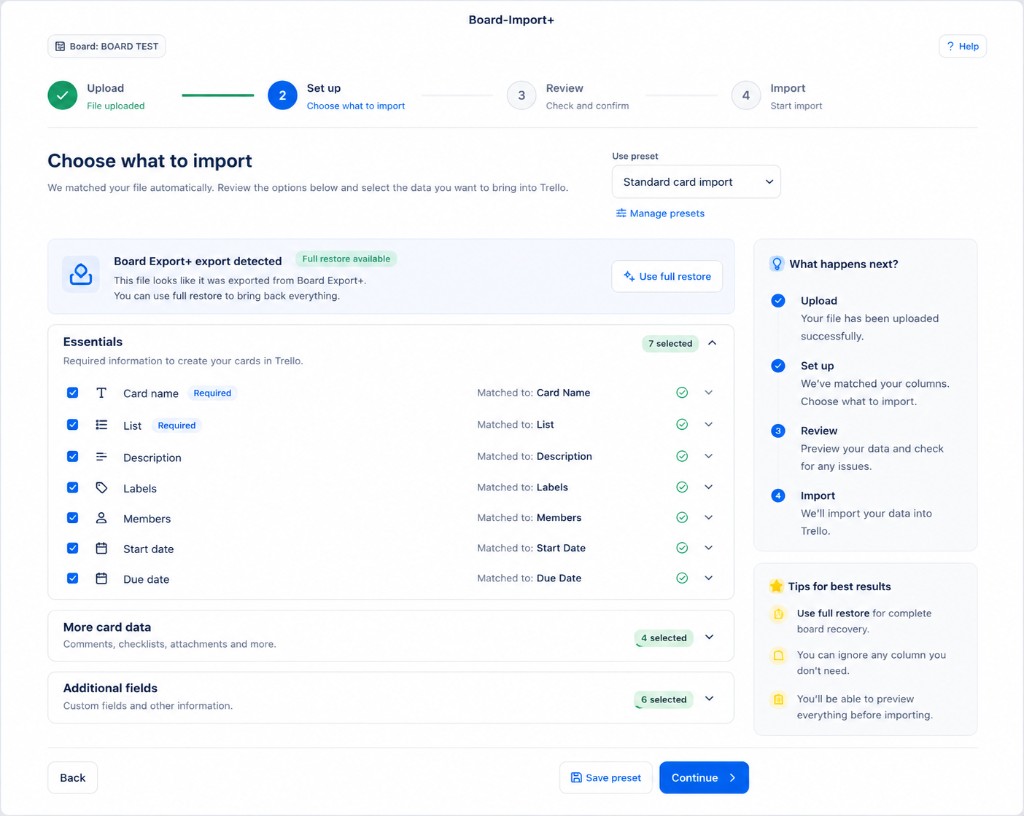
In most cases, Board-Import+ matches columns for you automatically. The screen shows which source column each Trello field is matched to.
Use the checkboxes to include or skip fields:
- Essentials — card name, list, description, labels, members, start date, due date
- More card data — comments, checklists, attachments, and more
- Additional fields — custom fields and other mapped data
Card name and List are required. The Continue button stays disabled until required fields are resolved.
Board Export+ files
If the file came from Board Export+, Board-Import+ detects it and shows Full restore available. Click Use full restore to apply the exporter’s column layout and recreate cards on another board with less manual work.
Presets
Use the preset menu (for example Standard card import) to apply a saved mapping from a previous import. Click Manage presets to edit saved presets.
You can also click Save preset in the footer, or save one later on the Import options screen.
When something needs attention
If a column cannot be matched automatically, Board-Import+ asks you to pick which column contains the card name or map individual columns to Trello fields. Follow the on-screen prompts.
Continue
Click Continue to open Import options (lists, labels, and advanced settings).