Step 4 — Import
Board-Import+ creates your cards in the background. You can watch progress or close the modal safely.
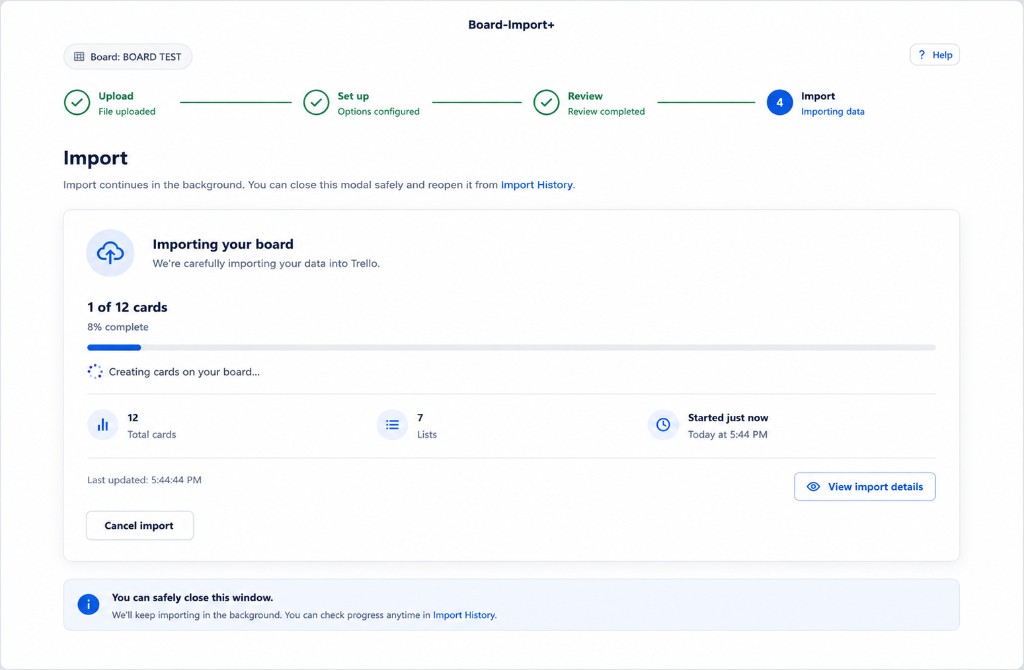
While importing
You will see:
- how many cards have been processed (1 of 12 cards, for example)
- a percentage complete (for example, 8% complete)
- a status message such as Creating cards on your board…
- a progress bar
- summary stats for Total cards, Lists, and when the import Started
- a Last updated time
Click View import details for more information about the running job.
Close the modal
The import keeps running if you close the modal. A blue notice at the bottom reminds you that you can close the window safely and check progress anytime in Import History.
Reopen Board-Import+ from the board button and go to Import History to check status.
Cancel
Click Cancel import to stop before all cards are created. Cards already created on the board stay there — Board-Import+ does not roll them back automatically.
When import finishes
You will see a completion summary with:
- how many cards were created
- any rows that failed or were skipped
- a link to download an issue report CSV if problems occurred
From there you can Import another file or review the job in Import History.
After import
Open your Trello board and confirm the new cards, lists, and labels look correct. Keep your original spreadsheet as a backup.
Need help?
See the FAQ or email support@nikaj.dev.